- Koala Bites
- Posts
- Canva: Magic Grab
Canva: Magic Grab
Canva

David Skaife
December 01, 2024 • Estimated Reading Time: 3 minutes

Canva
👩🏻🏫🛠️Canva: Magic Grab
This Canva tool has been available for a few months and I finally got around to writing about it. Lately I have been using it to remove all the buttons and other items from my Playground screen shots. Mostly I don’t bother with that but sometimes it needs to be done.
It does a decent job of removing things and replacing the background, not perfect mind you but nothing is perfect. It basically lifts the selected area off the image, replaces the background under it and creates a new object that you can delete, move around or keep for later.
For example, you might have an image with a car in it, but the car is facing the wrong way. Magic Grab the car, flip it horizontally and reposition it on the image.
I also recently used it on my Classroom website project to pull buttons off the wall and make them clickable links.
In the examples below I remove all the Koala buttons and also decided to move the speech bubble around a little to even out the spacing a bit.

This is where you find it, in the image edit menu.
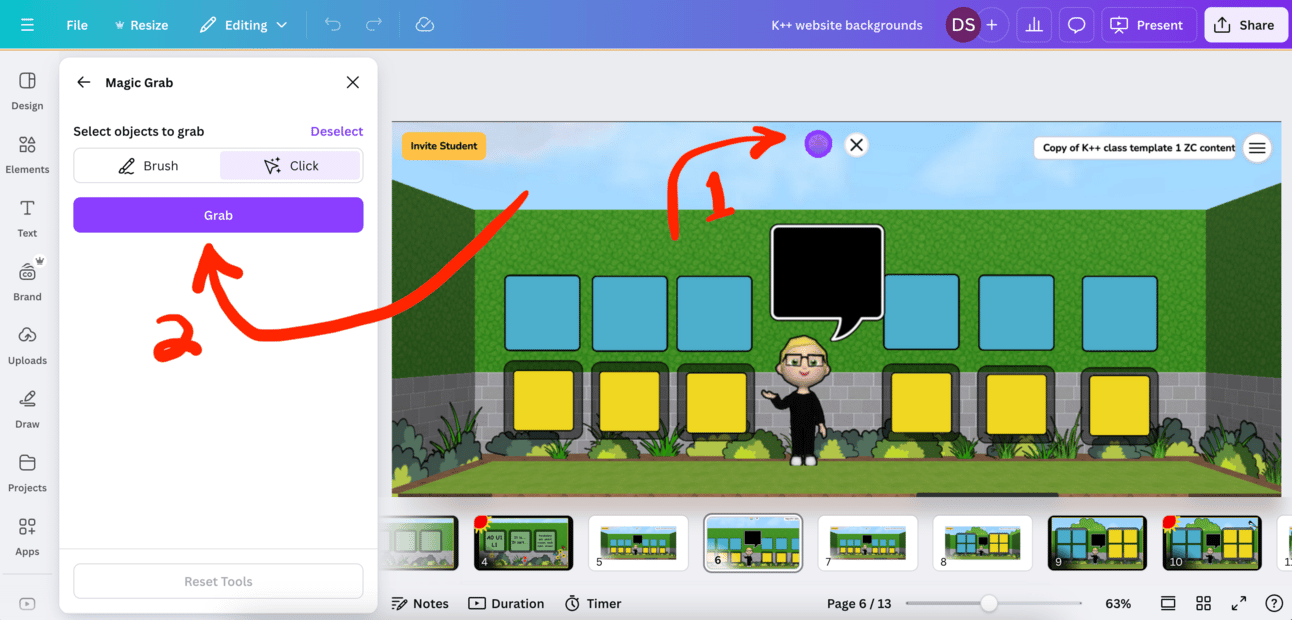
Click on the item you want to grab, and hit “Grab” it will take a few seconds.
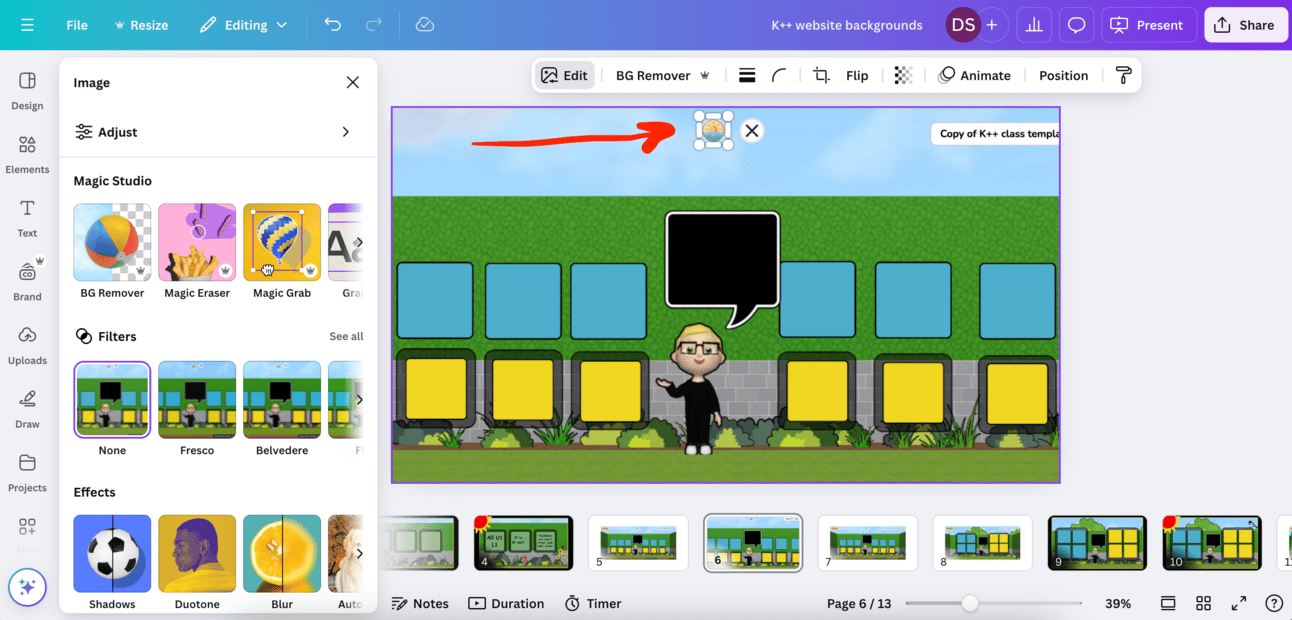
Now it is a separate image that I can move or delete. Rinse and repeat until everything is gone.

Buttons all gone, so I grab the Bubble and move it over a bit.

There, all done, Canva Magic!
Now I have a very nice image to use in my project. With this image I also used Magic Expand to add more sky, after Magic Erasing all the extra artifacts it turned out pretty good. Always remember to make copies before using these tools as you might just need them.
Reply